

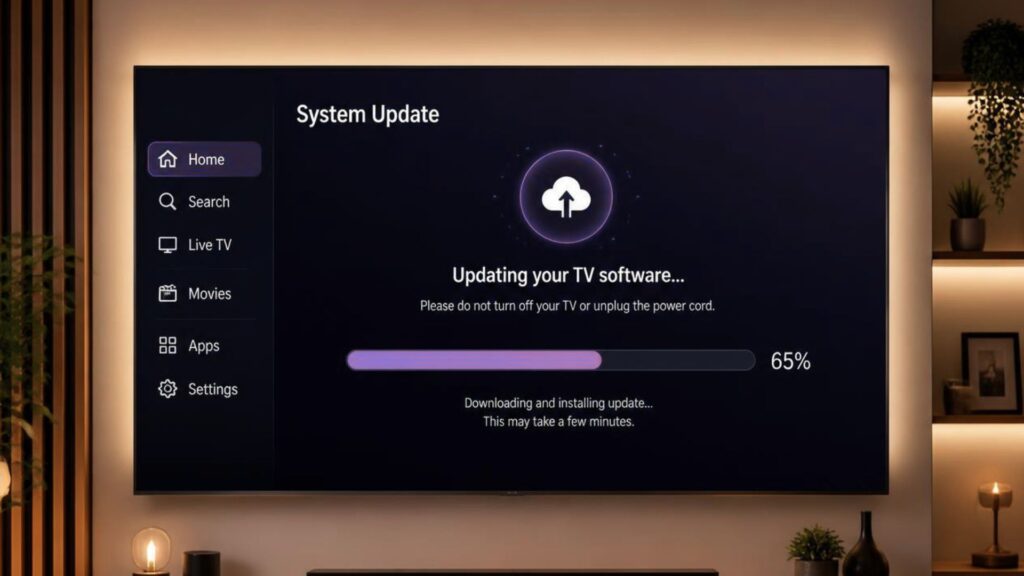
Updating Smart TV software is a simple process that helps improve performance, security, and app compatibility. To update your Smart TV, go to Settings > Software Update, check for available updates, and install the latest version while keeping your TV connected to a stable internet connection. Regular updates also introduce new features and improve the overall viewing experience.
Keeping your Smart TV software up to date is one of the easiest ways to maintain smooth performance and avoid common issues like app crashes, slow navigation, or connectivity problems. Software updates are released regularly to fix bugs, strengthen security, and improve compatibility with the latest streaming apps and features.
In this guide, you’ll learn how to update Smart TV software using different methods, troubleshoot common update issues, and follow a few simple maintenance tips to keep your TV performing at its best.
Why Should You Update Your Smart TV Software?
Updating your Smart TV isn’t just about getting new features. Every software update helps improve your TV’s overall performance and ensures it continues to work efficiently with the latest apps and services.
Some key benefits include:
- Faster and smoother performance
- Improved app compatibility
- Enhanced security against vulnerabilities
- Bug fixes for audio, video, and connectivity issues
- Better Wi-Fi and Bluetooth stability
- Access to new features and interface improvements
Regular updates also help extend the lifespan of your Smart TV by keeping its operating system optimized.
Things to Check Before Updating Your Smart TV
Before starting the software update, take a few minutes to ensure everything is ready. This helps prevent interruptions during installation and reduces the chances of update failures.
- Connect your Smart TV to a stable Wi-Fi or Ethernet connection.
- Keep the TV plugged into a reliable power source.
- Avoid turning off the TV while the update is in progress.
- Close any running apps if prompted.
- Ensure there is enough available storage if your TV requires it.
Taking these precautions makes the update process smoother and minimizes the risk of software installation errors.
Read More: https://www.oscarindia.in/how-to-install-apps-on-a-smart-tv-a-complete-step-by-step-guide/
How to Update Smart TV Software Automatically
The easiest way to keep your Smart TV updated is by enabling automatic software updates.
Step 1: Connect Your TV to the Internet
Ensure your Smart TV is connected to a stable Wi-Fi or Ethernet network.
Step 2: Open Settings
Using your TV remote, navigate to:
Settings > Support > Software Update
Depending on your TV model, you may also find this option under:
- System
- Device Preferences
- General Settings
- About TV
Step 3: Enable Auto Update
Turn on the Auto Update option if available.
Once enabled, your Smart TV will automatically download and install future software updates whenever they become available.
How to Update Smart TV Software Manually
If automatic updates are disabled or unavailable, you can manually install the latest software.
Step 1: Open the Software Update Menu
Go to:
Settings > Support > Software Update
Depending on your TV model, the software update may also be referred to as a firmware update. Both terms refer to updating your TV’s operating system with the latest performance improvements, security patches, and new features.
Step 2: Check for Updates
Select Check for Updates.
Your TV will search for the latest software version.
Step 3: Download the Update
If a new version is available:
- Select Download
- Wait for the download to finish
- Do not turn off your TV during the process
Step 4: Install the Update
After downloading, select Install if prompted.
The TV may restart once or twice while completing the installation.
Once finished, your Smart TV will be running the latest software version.
Read More: https://www.oscarindia.in/how-to-choose-the-right-smart-tv/
How to Update Smart TV Software Using a USB Drive
If your Smart TV isn’t connected to the internet, you can still update it using a USB flash drive.
Follow these steps:
- Visit your TV manufacturer’s official support website.
- Download the latest software update for your exact TV model.
- Copy the downloaded file to a formatted USB drive.
- Insert the USB drive into your Smart TV.
- Go to: Settings > Support > Software Update > Update via USB
- Follow the on-screen instructions to complete the installation.
Always download software designed specifically for your TV model to avoid compatibility issues.
How to Check Your Current Software Version
Before installing an update, it’s helpful to know which software version your TV is currently using.
Navigate to:
Settings > About TV or Support > Software Information
Here, you’ll usually find:
- Software version
- Firmware version
- Build number
Comparing this information with the latest version available helps you determine whether an update is necessary.
Common Smart TV Update Problems and Their Solutions
Most Smart TV software update issues can be resolved quickly with a few simple troubleshooting steps.
| Problem | Possible Solution |
|---|---|
| No update available | Your TV may already have the latest version or the update hasn’t been released in your region yet. |
| Update won’t download | Check your internet connection and restart your router before trying again. |
| Update gets stuck | Wait at least 15–20 minutes before restarting the TV. Interrupting an update may cause software issues. |
| Apps stop working after an update | Update the apps individually or reinstall the affected apps. |
| TV keeps restarting | Disconnect the TV from power for a few minutes. If the problem continues, perform a factory reset according to the manufacturer’s instructions. |
Expert Tips to Keep Your Smart TV Running Smoothly
Updating your TV software is only one part of maintaining its performance. Following a few simple practices can help your Smart TV run efficiently for years.
- Enable automatic software updates whenever possible.
- Restart your Smart TV every few weeks to clear temporary system processes.
- Remove apps you no longer use to free up storage.
- Update streaming apps regularly for better compatibility.
- Avoid disconnecting the TV from power while updates are being installed.
- If your TV has been offline for several months, install all pending updates before using newer streaming apps.
These small maintenance habits can improve speed, reduce software glitches, and provide a smoother viewing experience.
How Often Should You Check for Software Updates?
If you’ve enabled Auto Update, your Smart TV will usually download and install updates automatically whenever they’re available.
If automatic updates are turned off, it’s a good idea to check for updates every one or two months. You should also manually check for updates if you notice:
- Apps crashing frequently
- Slow system performance
- Wi-Fi or Bluetooth connectivity issues
- Streaming apps not working properly
- New features announced for your TV model
Regular updates ensure your Smart TV remains secure, stable, and compatible with the latest applications.
Frequently Asked Questions
Does updating Smart TV software delete my apps?
No. In most cases, updating your Smart TV software does not remove installed apps or personal settings. However, some apps may require separate updates after the software installation.
Can I use my Smart TV while it’s updating?
No. It’s best to wait until the update is complete. Interrupting the installation by switching off the TV or unplugging it may cause software issues.
Is updating Smart TV software free?
Yes. Official software updates released by your TV manufacturer are free to download and install.
Can I update my Smart TV without the internet?
Yes. Most Smart TVs support software updates through a USB flash drive. Simply download the latest software for your TV model from the manufacturer’s official website, copy it to a USB drive, and install it using the TV’s Software Update menu.
What happens if I never update my Smart TV?
If you don’t update your Smart TV, you may miss important security patches, bug fixes, performance improvements, and new features. Over time, some streaming apps may also stop working correctly because they require newer software versions.
Final Thoughts
Updating your Smart TV software is one of the simplest ways to keep your television running smoothly. Whether you choose automatic updates, manual installation, or a USB update, staying current with the latest software helps improve performance, strengthen security, and ensure compatibility with the newest apps and streaming services.
By checking for updates regularly and following a few basic maintenance practices, you can enjoy a faster, more reliable, and hassle-free entertainment experience.
Upgrade Your Entertainment Experience with Oscar India
Whether you’re purchasing your first Smart TV or upgrading to a feature-rich model, choosing a reliable brand makes all the difference. Oscar India offers modern Smart TVs designed for seamless performance, vibrant picture quality, and an intuitive smart viewing experience.
If you’re looking for dependable Smart TV manufacturers, explore Oscar India’s range of Smart TVs to enjoy advanced technology, regular software support, and entertainment built for today’s connected lifestyle.