

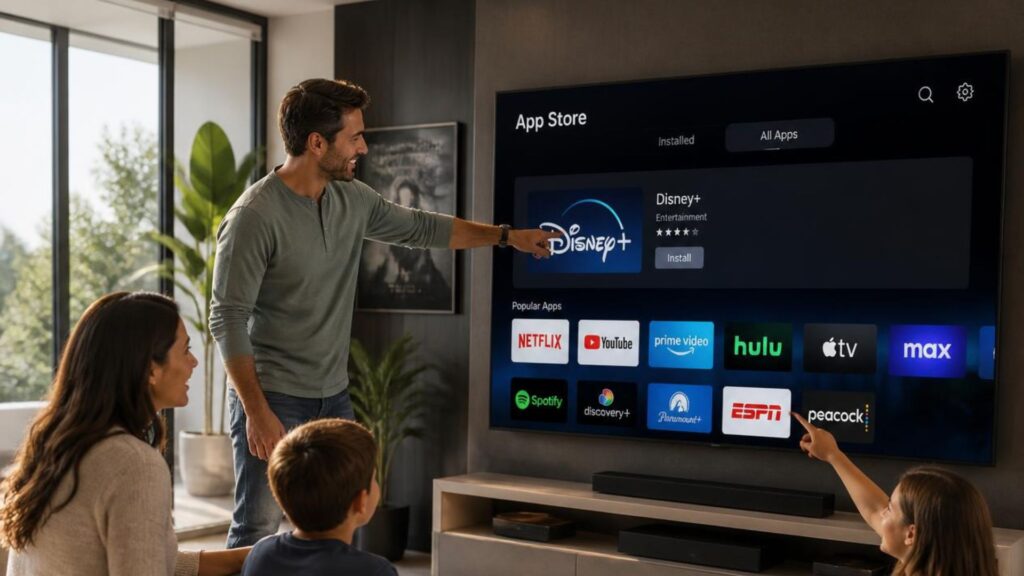
Installing apps on a Smart TV is easy. Connect your TV to the internet, open the built-in app store, search for the app you want, and select Install. While the exact steps vary depending on your TV’s operating system, the overall process is similar across most Smart TVs.
Smart TVs let you do much more than watch traditional TV channels. From streaming movies and TV shows to gaming, fitness, education, and music, installing apps unlocks the full potential of your television. Whether you want to watch Netflix, YouTube, Prime Video, Disney+ Hotstar, or other popular services, downloading apps is one of the first things you should do after setting up your Smart TV.
In this guide, you’ll learn how to install apps on different Smart TV platforms, troubleshoot common installation problems, and follow best practices for a smooth experience.
How Do You Install Apps on a Smart TV?
Most Smart TVs include an official app store where you can safely download compatible applications.
Follow these simple steps:
- Connect your Smart TV to the internet.
- Open the built-in App Store.
- Search for the app you want.
- Select the app.
- Click Install or Download.
- Wait for the installation to finish.
- Open the app and sign in if required.
Although the interface may look different depending on your TV brand, the installation process is generally the same.
What Do You Need Before Installing Apps?
Before downloading any app, make sure your Smart TV is ready.
Connect to a Stable Wi-Fi Network
A reliable internet connection is essential for downloading and updating apps without interruptions.
Sign In to Your TV Account
Some Smart TV platforms require you to sign in with a Google, Samsung, or LG account before installing apps.
Update Your TV Software
Installing the latest software version improves security, fixes bugs, and ensures compatibility with newer applications.
Check Available Storage
Smart TVs have limited internal storage. If your TV is running low on space, remove unused apps before installing new ones.
How to Install Apps on Android TV and Google TV
If your Smart TV runs Android TV or Google TV, installing apps is simple.
- Press the Home button on your remote.
- Open the Google Play Store.
- Search for the app you want.
- Select the application.
- Click Install.
- Wait for the download to complete.
- Open the app from your home screen.
How to Install Apps on Samsung Smart TVs
Samsung Smart TVs use their own app marketplace.
Follow these steps:
- Press the Home button.
- Select Apps.
- Use the search feature to find an app.
- Choose the application.
- Click Install.
- Launch the app after installation.
How to Install Apps on LG Smart TVs
LG Smart TVs use the LG Content Store for downloading applications.
Here’s how:
- Press the Home button.
- Open the LG Content Store.
- Search for your preferred app.
- Select Install.
- Wait for the installation to finish.
- Open the app and start using it.
Why Can’t I Install Apps on My Smart TV?
Sometimes apps fail to install due to common issues. Here are the most likely reasons.
Weak Internet Connection
A slow or unstable Wi-Fi connection can interrupt downloads. Restart your router or reconnect your Smart TV to the network.
Insufficient Storage Space
If your TV’s storage is full, new apps cannot be installed. Delete apps you no longer use and clear cached data if available.
Outdated TV Software
Older software versions may not support the latest apps. Updating your TV often fixes installation problems.
App Not Available in Your Region
Some applications are only available in selected countries. If you can’t find an app, it may not be supported in your region.
Temporary Server Issues
Sometimes the app store or app provider experiences temporary outages. Waiting a few minutes and trying again usually resolves the issue.
Restart Your Smart TV
If downloads continue to fail, restart your TV. A simple reboot often fixes temporary software glitches.
Read more: https://www.oscarindia.in/how-to-update-smart-tv-software-a-complete-step-by-step-guide/
Can You Install Apps That Aren’t Available in the App Store?
Some Android TV and Google TV devices allow users to install APK files through a process called sideloading. However, not every Smart TV supports this feature, and installing apps from unknown sources may create security or compatibility issues.
For the safest experience, always download applications from your TV’s official app store.
How Do You Update or Remove Installed Apps?
Keeping apps updated ensures better performance, improved security, and access to the latest features.
Many Smart TVs update apps automatically. If automatic updates are disabled, you can manually check for updates from the app store.
If your TV is running out of storage:
- Open the Apps section.
- Select the installed app.
- Choose Uninstall or Delete.
- Confirm the action.
Removing unused apps helps free up storage and improve overall performance.
Tips for Installing Apps Safely
Following a few best practices helps keep your Smart TV secure and running smoothly.
- Download apps only from the official app store.
- Keep your TV software updated.
- Enable automatic app updates whenever possible.
- Remove apps you no longer use.
- Use a stable Wi-Fi connection while downloading.
- Restart your TV occasionally for optimal performance.
Frequently Asked Questions
Why can’t I find an app on my Smart TV?
Some apps are only available for specific Smart TV operating systems or regions. If an app doesn’t appear in the app store, it may not be compatible with your TV.
Can I install apps without an internet connection?
No. A Smart TV must be connected to the internet to download and install applications.
Is it safe to install apps from unknown sources?
It’s always recommended to install apps from your TV’s official app store. Downloading apps from unknown sources may expose your TV to security risks or compatibility issues.
Do installed apps use storage space?
Yes. Every installed app uses part of your TV’s internal storage. Regularly removing unused apps helps maintain smooth performance.
Conclusion
Installing apps on a Smart TV is a simple process that opens the door to streaming, gaming, learning, and many other entertainment options. Whether your TV runs Android TV, Google TV, Samsung’s Tizen OS, or LG’s webOS, the installation steps are straightforward once your TV is connected to the internet and running the latest software. By following the steps and troubleshooting tips in this guide, you can safely install apps and enjoy a seamless Smart TV experience.
Looking for a Smart TV that offers smooth app installation, reliable performance, and access to your favorite entertainment platforms? Explore the latest range from Oscar India, a trusted Smart TV manufacturer, and discover feature-rich Smart TVs designed to elevate your home entertainment experience.