

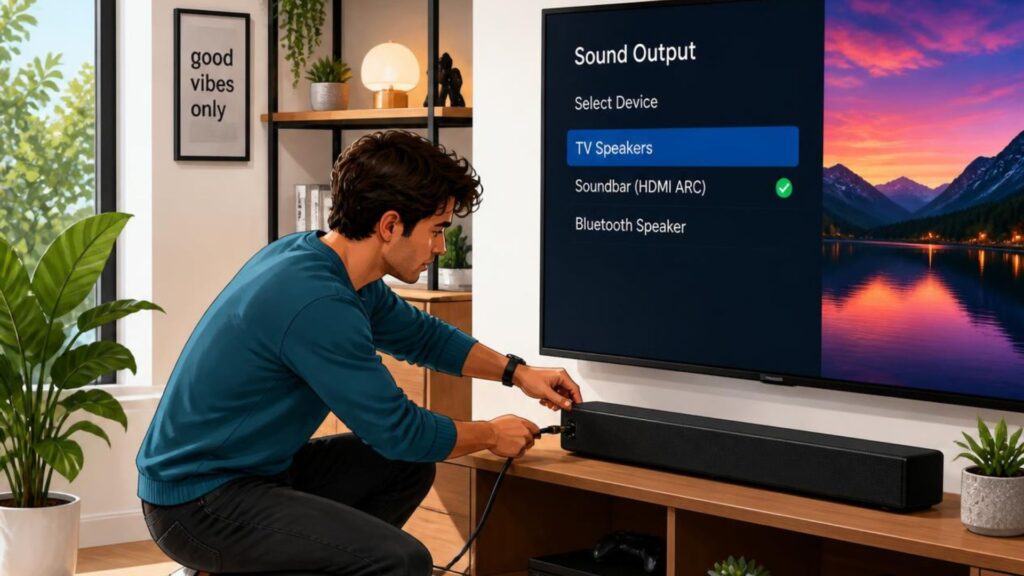
Connecting a soundbar to a Smart TV is usually simple and can be done through HDMI ARC/eARC, optical cable, Bluetooth, or AUX, depending on your TV and soundbar. HDMI ARC/eARC is generally the preferred option because it supports high-quality audio and lets you control the soundbar volume with your TV remote.
What Do You Need to Connect a Soundbar to a Smart TV?
Before connecting your soundbar, check which audio ports are available on both devices. Most modern Smart TVs and soundbars offer one or more of these connection options:
- HDMI ARC/eARC: The most convenient option for high-quality audio and simple control.
- Optical cable: A reliable digital audio connection that works with many TVs and soundbars.
- Bluetooth: Useful for wireless connections without cables.
- AUX cable: A basic wired option available on some older TVs and soundbars.
Your choice will depend on the ports supported by your TV and soundbar.
How to Connect a Soundbar Using HDMI ARC or eARC?
HDMI ARC (Audio Return Channel) and eARC (Enhanced Audio Return Channel) are among the easiest ways to connect a soundbar to a Smart TV.
Follow these steps:
- Locate the HDMI ARC or eARC port on your Smart TV. It is usually labelled “HDMI ARC” or “HDMI eARC.”
- Find the HDMI ARC/eARC port on the soundbar.
- Connect one end of an HDMI cable to the TV’s ARC/eARC port.
- Connect the other end to the corresponding port on the soundbar.
- Turn on both devices.
- Open your TV’s Sound or Audio Settings and select the soundbar or HDMI ARC/eARC as the audio output.
- Test the sound and adjust the volume.
The main advantage of HDMI ARC/eARC is that a single cable can carry audio from the TV to the soundbar. It can also allow compatible TVs to control the soundbar using the TV remote.
Read More: https://www.oscarindia.in/hdmi-arc-vs-optical-cable-which-is-better-for-a-soundbar/
How Do You Connect a Soundbar Using an Optical Cable?
If your TV or soundbar does not support HDMI ARC, an optical connection is a dependable alternative.
To connect it:
- Find the Optical Digital Audio Out port on the TV.
- Locate the Optical In port on the soundbar.
- Remove the protective caps from the optical cable if present.
- Connect one end to the TV and the other to the soundbar.
- Turn on the soundbar and TV.
- Go to the TV’s audio settings and select Optical or Digital Audio Out.
- Select the appropriate digital audio format if required.
Optical cables provide a digital audio connection and are particularly useful for TVs that do not have ARC or eARC.
Can You Connect a Soundbar to a Smart TV Using Bluetooth?
Yes, many Smart TVs and soundbars support Bluetooth, allowing you to connect them without an audio cable.
First, put the soundbar into Bluetooth pairing mode. Then open your TV’s Bluetooth or audio settings and search for available devices. Select your soundbar from the list and wait for the devices to pair.
Bluetooth is convenient when you want to avoid cables, but a wired HDMI or optical connection may be preferable for a more consistent home-theatre experience. Bluetooth availability and supported audio features can also vary between devices.
How Do You Set the Soundbar as the TV’s Audio Output?
Simply connecting the soundbar may not automatically switch the TV’s audio output. If you cannot hear sound through the soundbar, open your Smart TV’s Settings > Sound/Audio menu.
Look for an option such as Sound Output, Audio Output, or Speaker Selection. Select the connection you are using, such as HDMI ARC, Optical, or Bluetooth.
If your TV continues playing sound through its built-in speakers, check that the soundbar is switched on and that the selected input on the soundbar matches the connection being used.
What Should You Do If the Soundbar Has No Sound?
If your soundbar is connected but there is no audio, try these troubleshooting steps:
- Check that the correct input is selected on the soundbar.
- Make sure the TV’s audio output is set to the soundbar.
- Check that both devices are powered on.
- Disconnect and reconnect the cable.
- Try another HDMI or optical cable if available.
- Check the TV’s digital audio output settings.
- Restart both the TV and soundbar.
- If using Bluetooth, unpair and pair the devices again.
For HDMI connections, also confirm that you have connected the cable to the TV’s ARC/eARC-labelled HDMI port, rather than a standard HDMI port.
Which Connection Is Best for a Smart TV Soundbar?
For most modern Smart TVs, HDMI eARC or ARC is the first connection to consider because it combines convenience with strong audio capabilities. Optical is a good alternative when HDMI ARC/eARC is unavailable, while Bluetooth is useful when a wireless setup is more important.
When choosing a soundbar, consider your TV’s compatibility, room size, audio requirements, connectivity options, and features such as Dolby Atmos or a separate subwoofer. Comparing these factors can help you find a setup that delivers better sound without unnecessary complexity.
Enjoy Better TV Audio With the Right Soundbar
A soundbar can significantly improve the audio experience of a Smart TV without requiring a complicated home-theatre setup. Whether you choose HDMI ARC/eARC, optical, or Bluetooth, the key is to match the soundbar’s connection options with your TV and configure the correct audio output. Explore Oscar India’s range to find the best soundbar for your Smart TV and enjoy clearer, more immersive entertainment at home.