

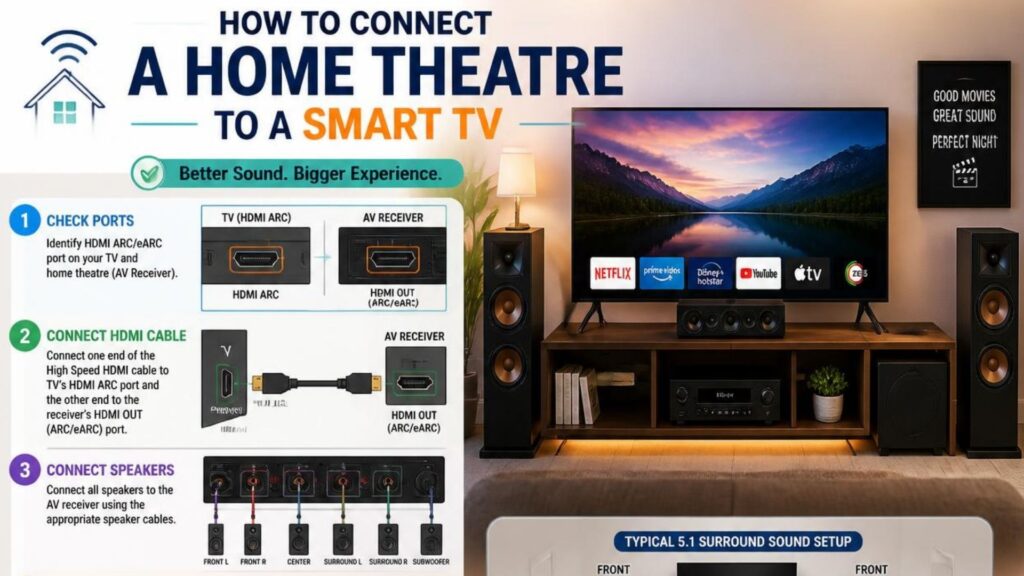
The easiest way to connect a home theatre to a Smart TV is through HDMI ARC or eARC. Connect the TV’s HDMI ARC/eARC port to the matching port on the home theatre, select the external speaker or HDMI ARC option in the TV’s sound settings, and choose the correct input on the home theatre.
Which Cable Is Best for Connecting a Home Theatre to a Smart TV?
The best connection depends on the ports available on your Smart TV and home theatre. HDMI ARC or eARC is generally the preferred option for modern systems because it carries digital audio and supports convenient communication between compatible devices.
| Available connection | Recommended option | Best for |
|---|---|---|
| HDMI ARC/eARC on both devices | HDMI ARC/eARC | Modern home theatre systems |
| Optical ports on both devices | Optical cable | Digital audio without ARC |
| AUX/RCA ports | AUX/RCA cable | Older audio systems |
| Bluetooth supported by both | Bluetooth | Wireless audio |
Before connecting anything, check the labels next to the ports on both devices. A regular HDMI port does not necessarily support ARC. Look specifically for HDMI ARC or HDMI eARC.
How Do You Connect a Home Theatre to a Smart TV With HDMI ARC?
HDMI ARC is usually the simplest wired method for connecting a home theatre system to a Smart TV. If both devices support eARC, use the eARC ports for greater bandwidth and compatible advanced audio formats.
Follow these steps:
- Find the HDMI ARC or eARC port on your Smart TV.
- Find the corresponding HDMI ARC/eARC port on the home theatre or AV receiver.
- Connect both ports using a suitable HDMI cable.
- Turn on the TV and home theatre.
- Open Settings → Sound/Audio → Sound Output on the TV.
- Select HDMI ARC, eARC, Receiver, or External Speaker, depending on the TV.
- Select the corresponding HDMI input on the home theatre if it does not switch automatically.
- Play a video or music to test the sound.
For compatible equipment, enabling HDMI-CEC can allow the TV and home theatre to communicate and may let you control volume using a single remote.
What Is the Difference Between HDMI ARC and eARC?
HDMI ARC and eARC both allow a TV to send audio to an external audio system through HDMI, but eARC provides greater bandwidth.
HDMI ARC is suitable for many everyday home theatre setups and supports common surround-sound formats.
HDMI eARC offers higher bandwidth and is designed to support more advanced audio formats and higher-quality audio signals when the TV, home theatre and content all support them.
If both your Smart TV and home theatre have eARC, connecting the two eARC ports is generally the best option.
How Do You Connect a Home Theatre to a Smart TV Using an Optical Cable?
If your TV or home theatre does not support HDMI ARC/eARC, an optical cable is a reliable alternative for digital audio.
To set it up:
- Locate the Optical Out/Digital Audio Out port on the TV.
- Locate the Optical In port on the home theatre.
- Connect both using an optical digital audio cable.
- Select the optical input on the home theatre.
- Open the TV’s Sound Output settings.
- Select Optical or Digital Audio Out.
- Test the connection by playing content on the TV.
Optical can provide good digital audio, but it does not offer the same bandwidth and capabilities as HDMI eARC.
HDMI vs Optical: Which Connection Should You Choose?
If both options are available, HDMI ARC/eARC is generally the better choice for a modern home theatre setup. It can provide greater audio capabilities and makes it easier for compatible devices to communicate.
Choose optical when your TV or home theatre does not support ARC/eARC or when you specifically prefer a separate digital audio connection.
In simple terms:
- Choose HDMI eARC for the most capable modern setup.
- Choose HDMI ARC for a straightforward compatible connection.
- Choose optical when ARC/eARC is unavailable.
- Choose AUX/RCA mainly for older equipment.
Can You Connect a Home Theatre to a Smart TV Using AUX or RCA?
Yes. AUX or RCA can connect a Smart TV to a compatible home theatre, particularly when using an older audio system.
Connect the TV’s audio output to the corresponding AUX or RCA input on the home theatre, then select that input on the audio system.
However, analogue connections generally provide fewer surround-sound capabilities than HDMI ARC/eARC or optical connections. If your equipment supports HDMI ARC/eARC, it should normally be your first choice.
How Do You Connect a Home Theatre to a Smart TV Wirelessly?
Some Smart TVs and home theatre systems support Bluetooth, allowing them to connect without an audio cable.
To connect them:
- Turn on Bluetooth pairing mode on the home theatre.
- Open the TV’s Settings → Sound → Sound Output or Bluetooth device menu.
- Search for available Bluetooth devices.
- Select the home theatre from the list.
- Confirm pairing and select it as the TV’s audio output.
- Play content to check the sound.
Bluetooth is convenient when you want a cable-free setup, but it may not provide the same audio capabilities as a wired HDMI connection. Wireless compatibility can also vary between TV and home theatre models.
How Do You Get TV Sound Through the Home Theatre?
After connecting the cable, you may need to change the TV’s audio output manually.
Look for a menu such as:
Settings → Sound → Sound Output → External Speaker/HDMI ARC/Optical
The exact wording varies between Smart TV brands and operating systems.
If you are using HDMI ARC/eARC, check that HDMI-CEC is enabled on compatible devices. If there is no sound or you experience compatibility issues, check the TV’s digital audio-output format. Selecting PCM can help identify whether an incompatible audio format is causing the problem.
What Should You Do If the Home Theatre Has No Sound?
If your home theatre is connected but there is no audio, check the following:
- Make sure the cable is connected to the correct TV and home theatre ports.
- Confirm that you are using the TV’s ARC/eARC port, rather than a standard HDMI port.
- Select the correct input on the home theatre.
- Change the TV’s sound output from internal speakers to the connected audio system.
- Check that HDMI-CEC and ARC/eARC are enabled when required.
- Make sure both devices are switched on.
- Try another HDMI or optical cable if the connection appears faulty.
- If using digital audio, try PCM as the output format.
- Restart both devices after changing the audio settings.
If your TV and home theatre use different connection types, you may need an appropriate audio converter or a different connection method supported by both devices.
What Is the Best Way to Connect a Smart TV to a Home Theatre?
For most modern home entertainment setups, HDMI eARC is the preferred connection when both devices support it. HDMI ARC is an excellent option for compatible systems, while optical is a practical alternative when ARC/eARC is unavailable. Bluetooth offers convenience for wireless setups, while AUX or RCA is mainly useful for older equipment.
The right method ultimately depends on the ports and audio capabilities of your devices. Once the correct connection is made and the TV’s sound output is configured, your home theatre can deliver a more immersive audio experience for movies, streaming and gaming.
Upgrade Your Home Entertainment Experience
A well-designed home theatre setup can transform your experience of movies, music and gaming at home. If you are looking for a reliable system to pair with your Smart TV, explore Oscar India’s range of home theatre systems and choose a setup that suits your room size, connectivity needs and audio preferences.