

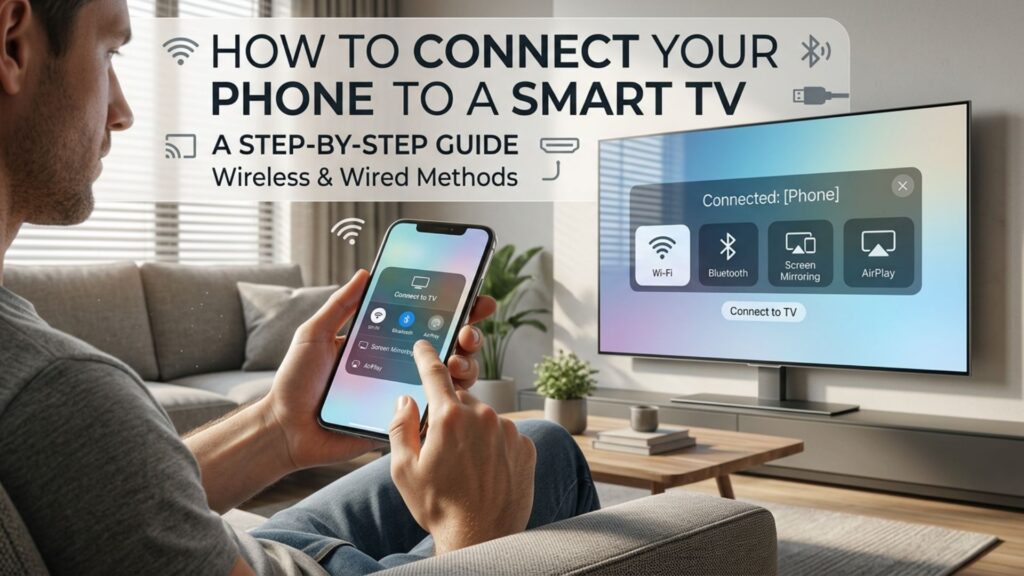
You can connect your phone to a smart TV using screen mirroring, Google Cast, Apple AirPlay or a compatible HDMI adapter. The right method depends on your phone and TV models. For wireless connections, both devices may need to use the same Wi-Fi network, allowing you to stream videos, share photos and display content on a larger screen.
What Are the Different Ways to Connect a Phone to a Smart TV?
The best connection method depends on whether you use an Android phone or an iPhone and which features your TV supports. Before connecting, check that both devices are compatible with your chosen method.
- Screen mirroring: Displays your phone’s screen on the TV.
- Google Cast: Streams content from compatible apps to a supported TV or streaming device.
- Apple AirPlay: Shares videos, photos and other content from an iPhone to a compatible TV.
- USB or HDMI: Provides a wired connection when supported by your devices.
How to Connect an Android Phone to a Smart TV Wirelessly
Most compatible Android phones can connect to a smart TV through screen mirroring or Google Cast. The available option depends on your phone’s manufacturer, Android version and TV operating system.
Step 1: Check Your Wi-Fi Connection
Connect your Android phone and smart TV to the same Wi-Fi network if your chosen connection method requires it. Turn on the TV and ensure its network connection is working.
Read More: https://www.oscarindia.in/how-to-set-up-wi-fi-on-your-smart-tv/
Step 2: Enable Screen Mirroring
Swipe down from the top of your phone’s screen to open Quick Settings. Look for an option such as Cast, Screen Cast, Smart View or Wireless Display.
The name varies between devices. If you cannot find it, search your phone’s settings or consult its user manual.
Step 3: Select Your Television
Tap the screen mirroring or casting option and select your TV from the available devices. If a pairing code or permission request appears, follow the on-screen instructions.
Your phone screen should now appear on the television. You can browse photos, display presentations or access compatible content on the larger screen.
Tip: If your TV does not appear, check whether it supports the wireless technology your phone uses and whether the relevant feature is enabled.
How to Connect an iPhone to a Smart TV
You can connect an iPhone to a compatible smart TV using Apple AirPlay. If your television does not support AirPlay, you may need a compatible streaming device or wired adapter.
Step 1: Check AirPlay Support
Make sure your TV supports AirPlay and that the feature is enabled. Connect your iPhone and television to the same Wi-Fi network.
Step 2: Open Screen Mirroring
On an iPhone with Face ID, swipe down from the top-right corner to open Control Centre. On an iPhone with a Home button, swipe up from the bottom edge.
Tap Screen Mirroring and select your television from the list.
Step 3: Complete the Connection
If an AirPlay passcode appears on the TV, enter it on your iPhone. Your phone screen should then appear on the television.
To disconnect, open Control Centre, tap Screen Mirroring and select Stop Mirroring.
If you only want to watch a video, check whether the app offers an AirPlay option. Streaming directly from a compatible app can be more convenient than mirroring your entire screen.
How to Connect Your Phone to a Smart TV Using Google Cast
Google Cast lets you stream content from compatible mobile apps to a supported television or streaming device. Unlike full-screen mirroring, it can let you control playback from your phone while the content plays on the TV.
Follow these steps:
- Connect your phone and Google Cast-enabled TV or streaming device to the same Wi-Fi network.
- Open a compatible app, such as YouTube.
- Tap the Cast icon, usually represented by a screen with a Wi-Fi symbol.
- Select your television or streaming device.
- Choose the content you want to watch and control playback from your phone.
Google Cast availability depends on your TV’s built-in features or connected streaming hardware. Not every smart TV supports it natively.
Can You Connect a Phone to a Smart TV Using USB or HDMI?
Yes, a wired connection may work if your phone supports video output and you have a compatible adapter and cable. However, a standard USB charging cable does not automatically allow you to mirror your phone’s screen.
For an HDMI connection, check whether your phone supports video output through its USB-C or Lightning port, depending on the model. You may need a compatible USB-C-to-HDMI adapter or an Apple-compatible digital AV adapter.
Connect the adapter to your phone, attach an HDMI cable and select the corresponding HDMI input on your TV. If both devices support the connection, the phone’s display or compatible video output should appear.
A USB connection may also let you access supported photos and files, but this depends on the phone, TV and connection mode. Check your device manuals before purchasing an adapter or cable.
Why Is Your Phone Not Connecting to the Smart TV?
If your television does not appear in the available devices list, the problem may involve network settings, compatibility or permissions. Try these troubleshooting steps before attempting to connect again.
- Check Wi-Fi: Make sure both devices are connected to the correct network when required.
- Restart both devices: This can resolve temporary connection issues.
- Enable the relevant feature: Turn on screen mirroring, AirPlay or the required casting function in the TV settings.
- Verify compatibility: Confirm that your phone and television support the same connection method.
- Update the software: Install available system updates for your phone and TV.
- Check app restrictions: Some apps limit screen mirroring or the playback of protected content.
- Improve the network signal: Weak Wi-Fi can cause buffering, lag or dropped connections.
If the problem continues, consult the user manuals for both devices to identify the supported connection method.
Read More: https://www.oscarindia.in/how-long-does-a-smart-tv-last/
Which Connection Method Should You Choose?
The right method depends on what you want to do and which features your devices support.
| Your requirement | Recommended method |
|---|---|
| Display your entire Android screen | Screen mirroring |
| Stream content from compatible apps | Google Cast |
| Share an iPhone screen | Apple AirPlay |
| Connect without relying on Wi-Fi | Compatible HDMI adapter and cable |
| View supported photos or files | USB connection, if supported |
Wireless connections are convenient for everyday streaming, while a wired connection may be more suitable when Wi-Fi is unavailable or unreliable. Always check device compatibility before choosing a method.
Read More: https://www.oscarindia.in/how-to-choose-the-right-smart-tv/
What Should You Check Before Buying a Smart TV?
If you regularly connect your phone to your television, check its connectivity features before purchasing. Look for support for your phone’s casting or mirroring technology, built-in Wi-Fi, suitable HDMI ports and compatibility with your preferred streaming apps.
Screen size, resolution, sound quality, operating system and ease of use also influence the viewing experience. Compare the specifications of individual models to ensure the TV meets your entertainment needs.
Whether you want to stream films, share family photos or enjoy videos on a bigger screen, the right television can make everyday entertainment more convenient. Explore Oscar India’s smart TV range and compare the connectivity features that suit your needs. When choosing among Smart TV manufacturers, prioritise phone compatibility, ease of use and the features you will use most often.