
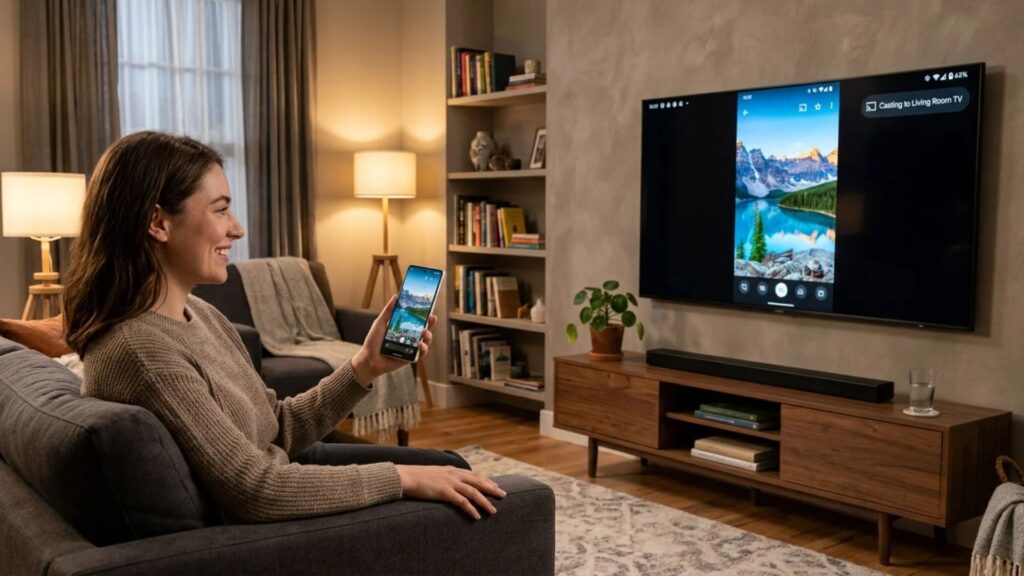
To mirror your smartphone screen to a Smart TV, ensure both devices are connected to the same Wi-Fi network. On Android, swipe down to open Quick Settings and select Screen Cast or Smart View. On iPhone, open Control Center and tap Screen Mirroring. Select your Smart TV from the list to connect immediately.
Mirroring your smartphone screen to a bigger display completely changes how you stream movies, share vacation photos, or deliver presentations. Instead of huddling around a small display, wireless display technology lets you project photos, videos, apps, and games directly onto your living room display in real-time.
Whether you are using an Android phone or an iPhone, connecting your device to a modern television screen takes only a few seconds once you know which settings to use.
How Does Smartphone Screen Mirroring Work?
Screen mirroring creates a real-time wireless clone of your smartphone’s display on your television screen. Unlike casting—which streams specific media content while leaving your phone free for other tasks—mirroring duplicates every gesture, app interface, notification, and video played on your handheld device.
This seamless connection relies on direct wireless communication protocols:
- Wi-Fi Direct / Miracast: Used primarily by Android devices to establish a peer-to-peer connection without routing through an external internet router.
- AirPlay: Apple’s proprietary wireless streaming technology designed for seamless connectivity between iOS devices and compatible televisions.
- Chromecast / Google Cast: A platform-agnostic standard integrated into modern connected televisions and smart devices.
How to Mirror an Android Phone to a Smart TV
Android smartphones make wireless screen sharing simple with built-in casting features accessible directly from your quick settings panel.
Step 1: Connect to the Same Wi-Fi Network
For a reliable connection, verify that your Android smartphone and television are connected to the exact same Wi-Fi network band (preferably 5GHz for lower latency and smoother streaming).
Step 2: Enable Screen Mirroring on Your Smartphone
- Swipe down from the top of your Android screen to open the Quick Settings panel.
- Look for the screen casting icon, which may be labeled differently depending on your phone’s operating system:
- Smart View (Samsung)
- Cast or Screen Cast (Google Pixel, OnePlus, Motorola)
- Screen Sharing or Wireless Display (Xiaomi, Vivo, Oppo)
- Tap the icon to start scanning for nearby displays.
Step 3: Select Your Television and Confirm
- A list of available wireless displays will appear on your phone screen.
- Select your Smart TV from the list.
- If prompted on your TV screen, accept the connection request or enter the PIN shown on the display.
- Your smartphone display will instantly duplicate on your television.
How to Mirror an iPhone to a Smart TV
Apple devices use AirPlay technology to mirror content effortlessly to AirPlay 2-compatible televisions or streaming media players.
Step 1: Check Wi-Fi Connections
Ensure your iPhone and television are connected to the same Wi-Fi network.
Step 2: Open Control Center
- iPhone X or newer: Swipe down from the top-right corner of your screen.
- iPhone SE, 8, or older: Swipe up from the bottom edge of the screen.
Step 3: Start Screen Mirroring
- Tap the Screen Mirroring icon (two overlapping rectangles).
- Select your television from the list of detected devices.
- If an AirPlay passcode appears on your television screen, enter the code on your iPhone to finalize the pairing.
To stop mirroring at any point, reopen the Control Center, tap Screen Mirroring, and select Stop Mirroring.
How Do You Screen Mirror Without Wi-Fi?
If you do not have an active home internet connection, you can still duplicate your phone display using physical hardware or direct device-to-device connections.
Method 1: Wired HDMI Cable Connection
A wired connection provides zero latency and maximum stability without requiring a wireless router.
- Android (USB-C to HDMI): Plug a USB-C to HDMI adapter or cable into your phone’s USB-C port (ensuring your phone supports DisplayPort Alt Mode) and connect the other end to an HDMI port on your TV. Switch the television input source to the corresponding HDMI channel.
- iPhone (Lightning / USB-C to HDMI): Use an official Apple Digital AV Adapter connected to an HDMI cable to output your display directly to the screen.
Method 2: Wi-Fi Direct (Android)
Many modern televisions allow Android phones to mirror screens using Wi-Fi Direct. This feature creates a local hotspot between the phone and TV, eliminating the need for a router or internet access.
Why Is Your Phone Not Connecting to Your Smart TV?
If your devices fail to pair or experience lag during screen projection, work through these quick troubleshooting steps:
- Check Network Alignment: Ensure both devices are connected to the identical SSID (Wi-Fi network name), avoiding mix-ups between 2.4GHz and 5GHz bands.
- Restart Both Devices: Rebooting your smartphone and television clears temporary system caches and resets network interfaces.
- Disable Battery Saver / VPNs: Power-saving modes and active VPN connections can block local device discovery on your network.
- Update Firmware: Ensure your smartphone OS and television system software are updated to their latest builds to prevent compatibility bugs.
- Adjust TV Input Settings: Certain displays require you to open a dedicated “Screen Mirroring” or “Miracast” app from the TV menu before accepting incoming connections.
Read More: https://www.oscarindia.in/how-to-connect-your-phone-to-a-smart-tv/
Upgrade Your Home Entertainment Experience
Wireless display technology makes sharing content easier than ever, but screen mirroring quality ultimately depends on the display hardware receiving the signal. Choosing reliable smart TV manufacturers ensures high-speed wireless connectivity, crisp panel resolution, and seamless integration with all Android and iOS devices. Explore the latest lineup from Oscar India to elevate your viewing experience with stunning visuals and effortless screen casting built right in.

Close